Using My Reports
 You can access your saved reports by going to the Quick Actions panel on the Homepage and clicking on My Reports.
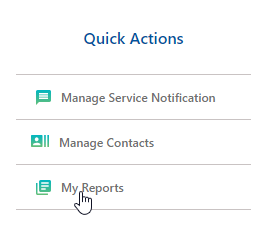
There are various ways to utilize the reports that are saved in the My Reports section. You can:
-
Generate the results using the existing search criteria that is saved in the report. Using this option allows you to populate the same search results again without making any changes to the search criteria.
-
Open a report to modify the search criteria. This is done to make changes to a preexisting report, generate, and save the report with a different name. For example, changing the Weekly Report and modifying the date criteria to search only for the past 24 hours allows you to save the report as a Daily Report without having to recreate the report.
-
View, download and print the report. You can save the specific data shown in a report (see Downloading Reports), or you can save the report criteria in My Reports. If you want to run the report in the future with updated information, see Saving Reports. To print a report, see Printing Reports.
 From the My Reports section, select the desired report under the Name column.

Navigating through My Reports
-
To open the report, click the desired report link. The report appears in the My Reports tab allowing you to search or save changes to the report.
-
To search using the saved search criteria, make any necessary changes and click Search. The selected search criteria will display the results in the saved report. Click Back to Search to return back to the report's search criteria.
-
To make changes to the saved search criteria, make the necessary changes and click Save Changes. The Add to My Reports screen appears. Click Save to replace the changes to the existing report name. The report will be updated with the changes you made.
-
To rename the saved search criteria, click Save Changes. The Add to My Reports screen appears allowing you to make changes to the report name.
-
To delete a report, click the Delete
 icon next to the report to remove. The report will be removed from the My Reports section.
Navigating through Report Pages
-
Click Back to My Reports to be navigated back to the list of reports.
-
If there are multiple pages of the report, click Back or Next to navigate to the previous or following report pages. The Back/Next buttons will only appear if there are multiple pages of the report.
Viewing Reports
Once you generate a report, you have the ability to view the report in a Web browser.
-
Click the Formatted Download link from the desired report's results screen. The report is launched in a new Web browser.
-
You have the option to print the report, use any menu bar or right-click options available to you from a Web browser.