Creating an Activity Alert
Creating activity alerts monitors a specific alarm activity that you want to track in DataSource. Once the activity alert is triggered, you are notified by email, and the alert appears in the Notifications Dashboard and saved in the alert history.
 To create an activity alert, click Account from the Navigation bar and select Alerts in the subnav.

Click the desired area in the image to display more information.
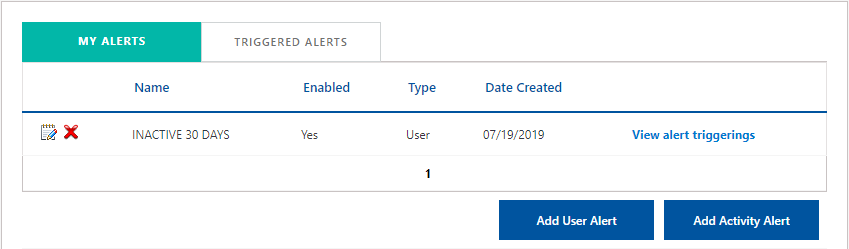
The My Alerts tab shows there are 2 activity alerts created:
-
From the Level Structure panel, select the desired site level/sites you want to use.
The site level appears in the Level(s) field. To remove a site level, select the site and click Remove. To remove all site levels in the Level(s) field, click Remove All. -
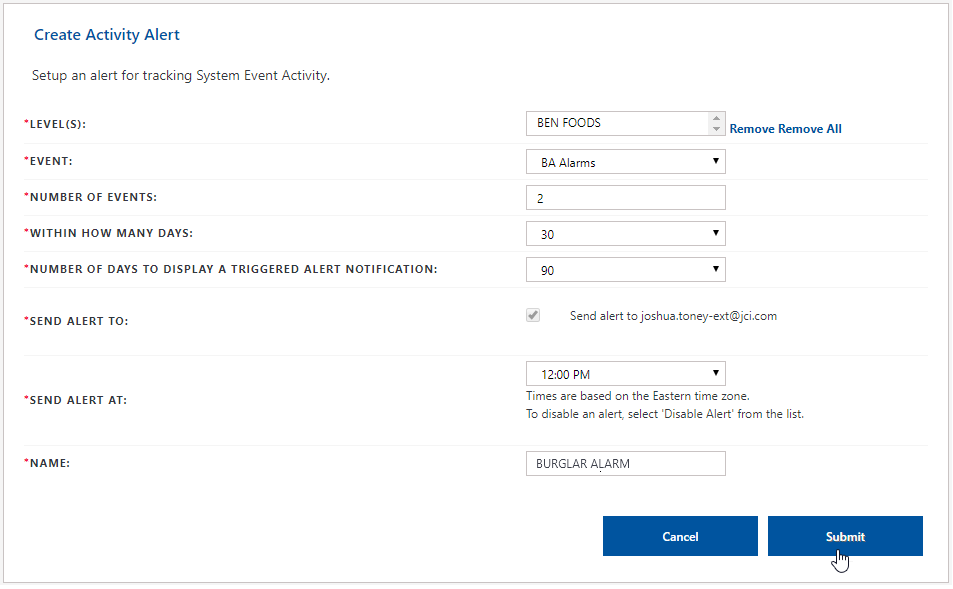
Click Add Activity Alert. The Create Activity Alert screen appears in the User Alerts panel.
-
Select the desired event type from the Event drop-down list.
-
Enter the desired number of events for the alert in the Number of Events field.
-
Select the value (number of days) you want for the alert in the Within How Many Days drop-down list.
-
Select the value (number of days for a trigger alert to take place) in the Number of days ... Triggered Alert Notification drop-down list.
-
Select the time (hour) to send the triggered alert from the Sent Alert To drop-down list.
-
Enter the activity name for the activity alert in the Name field.
-
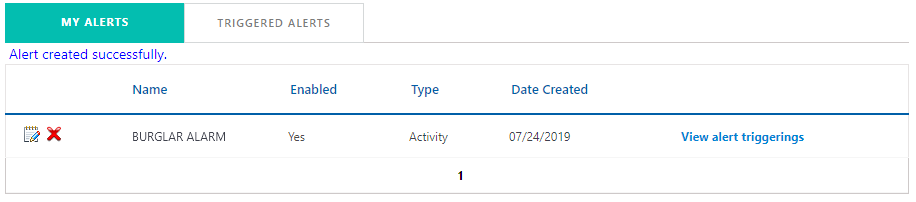
Click Submit. The activity alert appears in the My Alerts tab.
The Alert created successfully message appears in the My Alerts tab.