Enabling and Disabling Alerts
Administrators and users can enable and disable activity and users alerts from the Edit User Alert screen.
 To enable or disable an activity or user alert, click Account from the Navigation bar and select Alerts in the subnav.

-
Select My Alerts tab

-
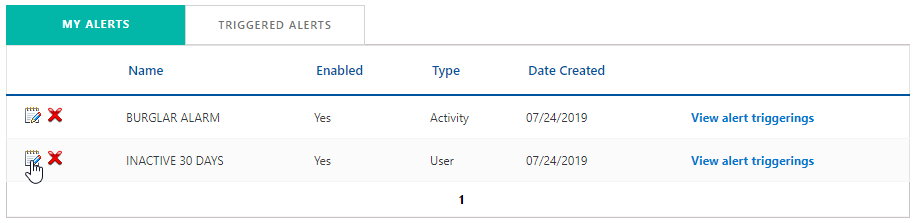
Click the Edit
 icon next to the activity or user alert you want to change.
-
The Edit User Alert screen is displayed.
-
To disable an alert, select Disable Alert from the Sent Alert At drop-down list.

-
To enable an alert, select a time value from the Sent Alert At drop-down list.

-
-
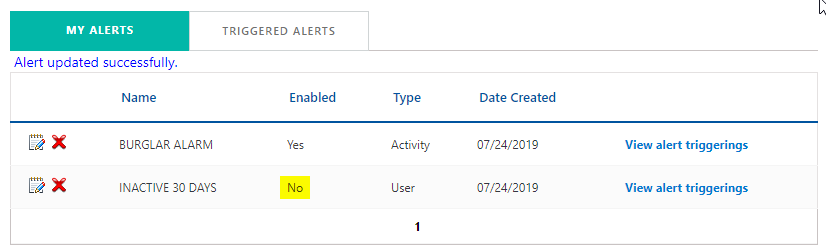
Click Submit. The Alert updated successfully message is displayed in the My Alerts tab.
The Ben Foods FL Employees user alert is disabled: