Searching for Users
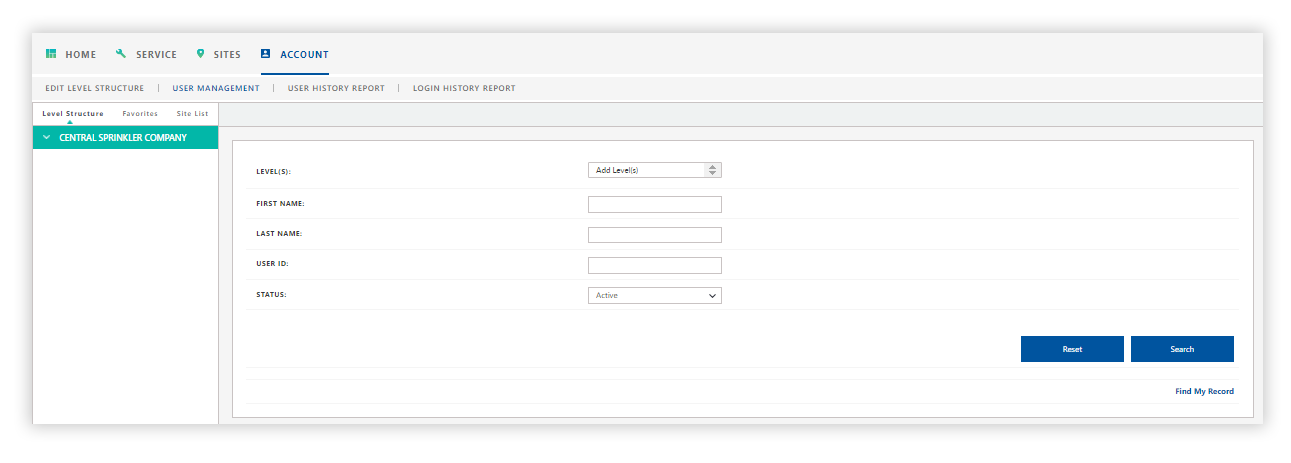
The User Search panel allows administrators to search for users by entering search criteria (site level, username, user ID, and user status).
The User Search panel is displayed by default on clicking User Management inside the Account tab.
Note:
- When using the search criteria fields, you can enter information in one or more fields.
- Each additional field used will limit the search for the user.
Determine the search criteria you want to use:
- Levels(s) - Using the Level Structure panel, select the desired site levels to include in the Level(s) field. The site levels you selected will appear.
- Name - Enter the user’s name in the First Name and/or Last Name fields. For example, when entering ‘Harris’ in the Name field, all ‘Harris’ users will appear in the search results.
- User ID - Enter the user’s ID in the User ID field.
- Status - Select the user’s status from the drop-down list. For example, an administrator may want to search for all active users for a particular site level.
Searching for All Users
-
Determine and select the desired site level or site from the Level Structure panel. The site level/site will be displayed in the Level(s) field in the User Search panel.
-
To search for all users, leave the fields blank in the User Search panel, and click Search.
-
All users associated with the company will appear in the User Search panel.
-
Searching for Individual Users
-
Enter the user's name or User ID using the First/Last Name or User ID fields.
-
Click Search.
-
The search criteria you entered will generate the results in the User Search panel.
-
-
Click the User ID link from the User ID column. The selected user appears in the User Profile panel.
-
Verify the desired username appears in the User ID field in the User Profile panel.
-
To save or download the search results in Microsoft Excel, click Excel Download.
-
To go back to the Search screen, click Back to Search.
-
To navigate to additional pages (if any) that display further results, click the Next > icon. Use the Previous < icon to go back to the previous search results page.
Searching for Users by Site Level
-
Determine and select the desired site level or site from the Level Structure panel. The site level/site will be displayed in the Level(s): field in the User Search panel.
-
Verify the desired site level/site is appears in the Level(s): field.
-
Click Remove to remove a site level/site from the field or click Remove All to remove all site levels/sites from the Level(s): field.
-
To search for all users for the site level/site, leave the User Search fields blank.
-
-
Click Search to generate the results in the User Search panel.
-
All users associated with the site level/site will appear in the list.
-
-
To save or download the report in Microsoft Excel, click Excel Download.
-
To go back to the Search screen, click Back to Search.
-
To navigate to additional pages (if any) that display further results, click Next > icon. Use the Previous < icon to go back to the previous search results page.
Searching Users by Status
-
To search using a specific user status, select the desired status from the Status drop-down list.
-
Click Search.
Searching for Your Record
-
Click Find My Record to find your username in the User Search panel.
-
Click your username in the User ID column from the User Search panel.
-
Your record appears in the User Profile panel.
-