Running a Login History Report Search
The Login History Report panel provides insight into which users has logged into DataSource and when. The user-based reporting feature is helpful for user maintenance, user monitoring and compliance. When used with the User Search and Level Structure panels, the Login History report generates a historical list of users that is associated with the search criteria that is entered. You can search for individual users, users by site level, or all users (depending on your user account type).
If you are an administrator, you will have access to the User Search panel which allows you to search for specific or groups of users. If your account type is setup as a user, you will not have the ability to search for other users; therefore, the User Search panel will not appear in the Login History tab.
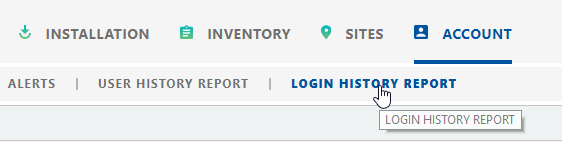
 To access the User Login History section, click Account from the Navigation bar and select the Login History Report tab.
Click the desired area in the image to display more information.
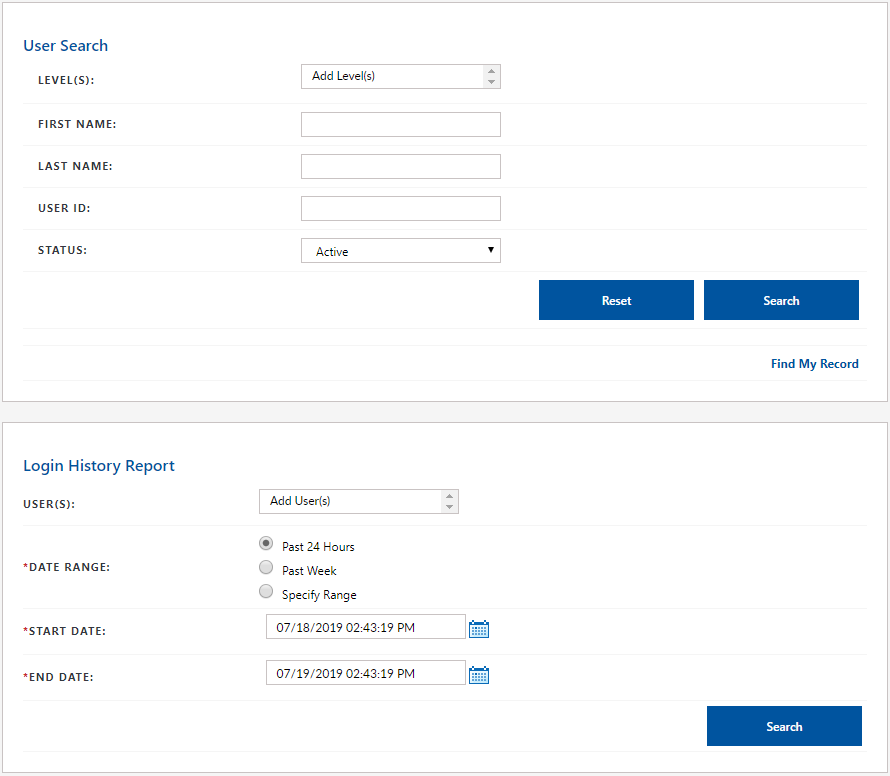
Field Definitions
User ID
The User ID is the email address used for the username of the person who is logged into DataSource. In Sites, the User ID only appears at the system level and is specific to an alarm panel and identified which user has armed/disarmed the alarm. Only Johnson Controls can add the User IDs to your contacts, but these User IDs can be assigned to your employees as needed.
Level(s)
Displays the site level that is selected from the Level Structure panel.
Status
Displays the current state the user is assigned in DataSource; Active or Inactive.
-
Active - By default, the Active setting is displayed in the Active field. Active users has access to DataSource and their permissions are based on the account type that was setup by the Administrator.
-
Inactive - Users who has an inactive status are users whose permissions or access to DataSource has been disabled.