Copying a Security User's Profile
To save time, there may be instances when an administrator may want to duplicate an existing user's profile to create a new user in DataSource. By copying an existing user, the new user profile retains most of the information, and the administrator updates the fields that are unique to the newly created user's profile. Once you copy and create a new user, Quick Links, My Reports and Alerts are also created.
 To copy an existing user, click Account from the Navigation bar, and select the Security Users tab (if applicable).
Copying a Security User Profile
-
To copy your user profile, click Copy User. Depending on your user type will depend on the fields you can modify. Administrators can modify additional fields.

-
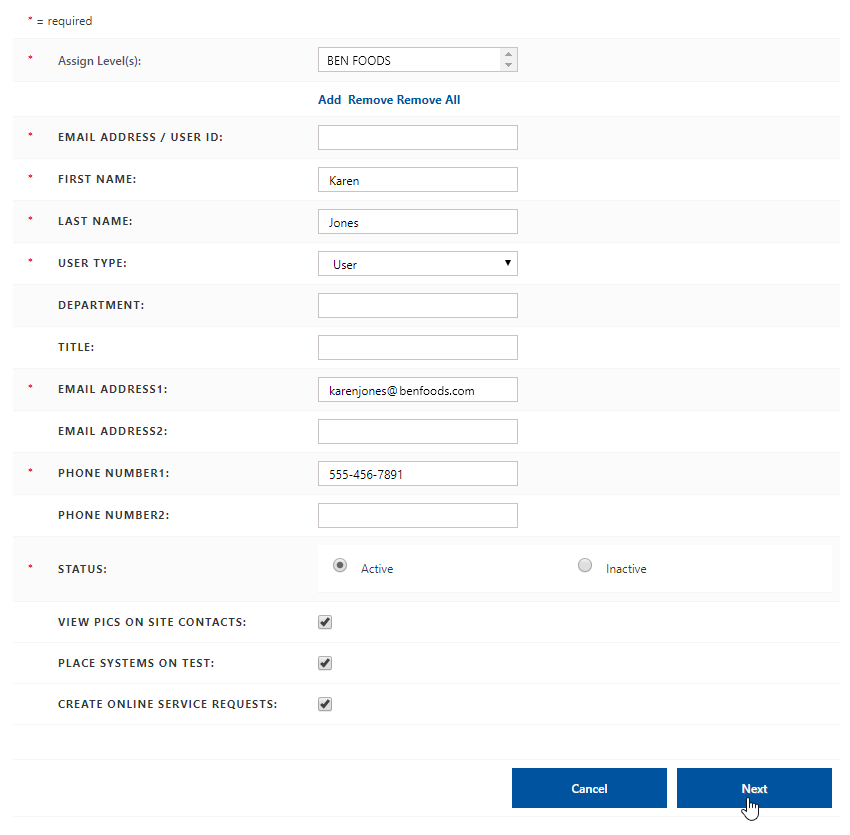
Make the necessary changes for the new user in the User Profile panel.
-
Determine and select the desired site level you want to give the user access to, select the desired site level/site from the Level Structure panel, and click Add.
The site level appears in the Assign Level(s) field. To remove a site level, select the site and click Remove. To remove all site levels in the Assign Level(s) field, click Remove All. -
Enter the User ID you want to use for the new user in the Email Address/User ID: field. User IDs must be a email address.
-
Enter the user's name in the First Name and Last Name fields.
-
Select the desired user type from the User Type drop-down list.
-
Optional. Enter the department and user's title in the Department and Title fields.
-
Enter the user's email address in the Email Address1: field. The user's email address is used to send alerts and email notifications that are setup in DataSource.
-
Enter the user's phone number in the Phone Number1: field. The user's phone number is related to the user; not a site.
-
Select the desired status for the user in the Status field. Active indicates the user is enabled; inactive indicates a disabled status.
-
View PICs on Site Contacts - Select this setting to give the user access to view PICs for their site contacts. For more information, see Site Contacts.
-
Place Systems on Test - Select this setting to give the user access to place systems (to site levels they are assigned to) on-test.
-
Create Online Service Requests - Select this setting to give access to creating service request using the DataSource application.
-
-
Click Next.
-
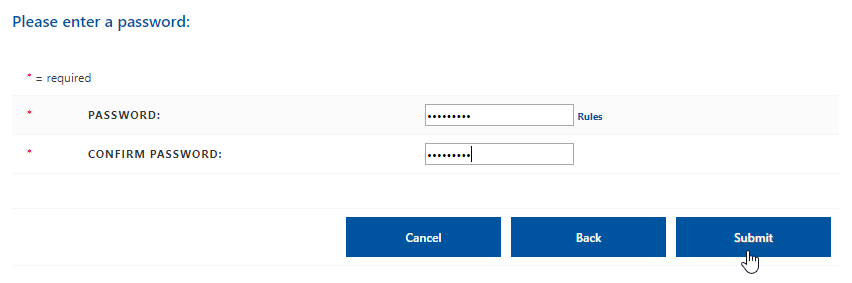
Enter a password for the user in the Password field. Re-enter the password in the Confirm Password field. For more information, see Changing your DataSource Password.
-
Click Submit to complete creating the user's profile, click Back to return to the previous screen, or click Cancel to cancel creating the user's profile.
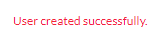
The User created successfully message appears, showing the newly created user's information in the User Profile panel.
Copying another Security User Profile
-
To copy another user's profile, search the user's profile using the User Search panel.
-
Once the desired user is displayed in the User Profile panel, click Copy User.
-
Make the necessary changes for the new user in the User Profile panel.
-
Determine and select the desired site level you want to give the user access to, select the desired site level/site from the Level Structure panel, and click Add.
The site level appears in the Assign Level(s) field. To remove a site level, select the site and click Remove. To remove all site levels in the Assign Level(s) field, click Remove All. -
Enter the User ID you want to use for the new user in the Email Address/User ID: field. User IDs must be a email address.
-
Enter the user's name in the First Name and Last Name fields.
-
Select the desired user type from the User Type drop-down list.
-
Optional. Enter the department and user's title in the Department and Title fields.
-
Enter the user's email address in the Email Address1: field. The user's email address is used to send alerts and email notifications that are setup in DataSource.
-
Enter the user's phone number in the Phone Number1: field. The user's phone number is related to the user; not a site.
-
Select the desired status for the user in the Status field. Active indicates the user is enabled; inactive indicates a disabled status.
-
View PICs on Site Contacts - Select this setting to give the user access to view PICs for their site contacts. For more information, see Site Contacts.
-
Place Systems on Test - Select this setting to give the user access to place systems (to site levels they are assigned to) on-test.
-
Create Online Service Requests - Select this setting to give access to creating service request using the DataSource application.
-
-
Click Next.
-
Enter a password for the user in the Password field. Re-enter the password in the Confirm Password field. For more information, see Changing your DataSource Password.
-
Click Submit to complete creating the user's profile, click Back to return to the previous screen, or click Cancel to cancel creating the user's profile.
The User created successfully message appears, showing the newly created user's information in the User Profile panel.