Viewing Activity Exception Reports
Searching and running allows you to view Alarm Activity exceptions that occur at your sites, and are considered events that arise outside a site's normal daily activities and you can search for exceptions based on the type of activity that occurs. Once you select the desired criteria to search for, you can download, view, save, and print the report.
 In order to use this feature, your account must be enabled for Early/Late - Open/Closes.
 To run an Activity Exception report, click Activity from the Navigation bar and select the Activity Reports sub-nav.
-
From the Level Structure panel, select the desired site levels to include in the report. You can search site levels using the Level Structure, Favorites, or Search tab.
-
Select Exceptions radio button in the Report Type field. You will have the ability to download and view the reports once you generate the search results.
-
Exceptions - Displays the activity events by Alarm Activity, Test Activity or both. You must select the exception type(s) you wish to run reports on, including Notify PD/PT/FD/MD, Failure to Open/Close, Early or Late Open/Close, Bypass Zone, Call Customer and Timer Test Failure.
-
-
Verify the site levels you want from the Level(s) list. Click Remove to remove a site level from the list or click Remove All to remove all site levels from the Level(s) list.
-
Determine and select the desired Activity Type
-
Determine and select the desired Exception Type(s). For multiple event types, use the SHIFT key to select in sequential order; use the CTRL key to select in non-sequential order.
-
Select the desired date range setting from the Date Range field.
-
Select the desired start/end date using the Calendar
 icon.
icon. -
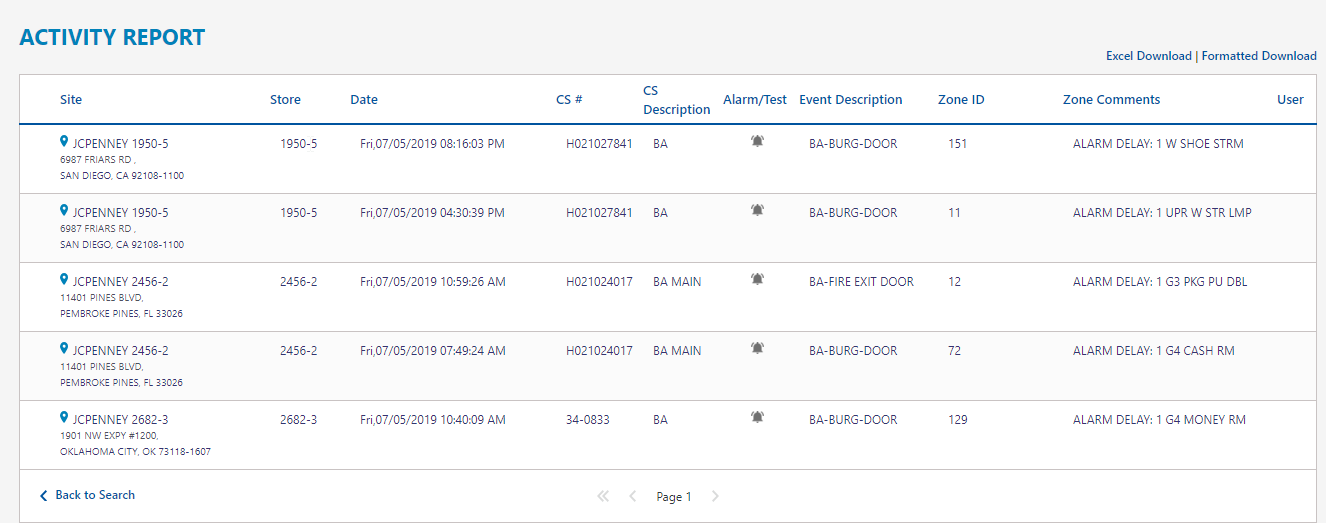
Click Search to run the report. The report will appear in the Alarm Activity panel and results are displayed based on the criteria you selected.
-
Once the alarm activity event report appears, you can download, view, print the report, view the report's summary, and navigate to additional pages (if any) that display further results.
-
To access the report for a later time, click Add to My Reports to save the criteria you selected for the report. The Add to My Reports section is displayed, allowing you to enter a name for the report. This is helpful as it saves the criteria settings you initially selected for the report.